
No need to learn
complicated editing software
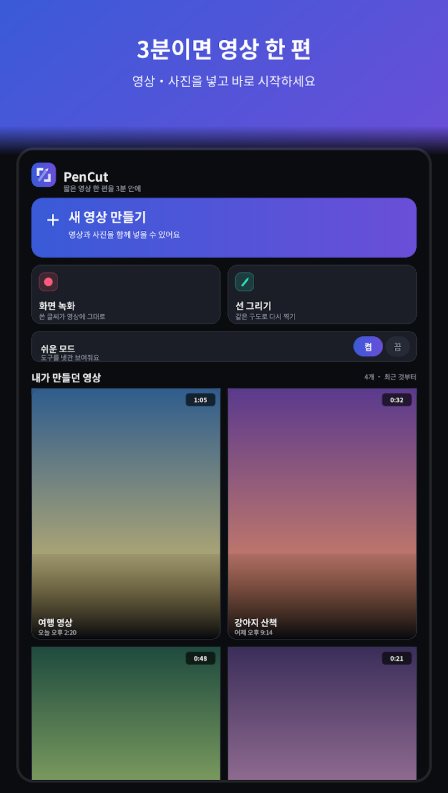
Add your videos and photos, put text on top, lay down music, and your vertical video is ready for social media. Plus screen recording that captures the handwriting you draw while recording, and an on-screen guide that lets you reshoot with yesterday's exact framing. No sign-up, no login — start right after installing.
About the app
We built it so you never have to learn editing software just to post one video. PenCut is a vertical video editor where you add videos and photos, put on captions and music, and finish your first video in 3 minutes. And this app has no internet access permission at all — no account, no ads, no analytics, and all your videos and edits stay on your phone.
Fast vertical video editing
- Vertical 9:16 by default, with square (1:1) and landscape (16:9) available
- Freely mix videos and photos on one timeline — trim, reorder, adjust speed (0.5x–4x)
- Scene transitions: fade to black, fade to white, zoom out and in, slide (4 directions) + adjustable transition speed
- Fill screen makes landscape footage fill a vertical frame, and photos get zoom in · zoom out · pan up/down/left/right effects
- Split scenes right where you're watching, a preview that follows as you drag, and two-finger timeline zoom
- Edits save automatically — close the app and pick up where you left off
Captions at the center of editing
- Auto captions — speech is recognized on your phone to create captions for you (6 languages)
- Style freely with font · size · color · outline · shadow · background box · alignment, and type text right from where you paused
- Drag captions with your finger to any spot in the preview
- Set captions that appear on one scene only, separately from title captions that stay up for the whole video
- Safe-zone guides so captions aren't covered by social media app UI
Audio & file tools — New
- Extract audio — save the sound from a video as an M4A · WAV audio file
- Convert format — turn iPhone MOV, MKV, AVI and other videos into MP4 that opens anywhere, with your choice of quality and file size
- Match audio levels — when joining several clips, even out different volumes with one button, or set each scene from 0–200% yourself
- Converted files are also saved only on your phone and never sent anywhere
Screen recording + handwriting — Only in this app
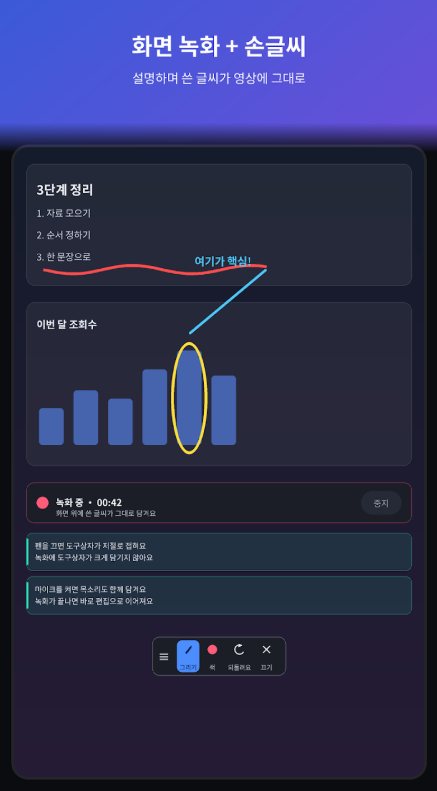
- Handwriting you draw on the screen while recording is captured right in the video
- No need to add text in a separate edit for app tutorials, lectures or gameplay commentary videos
- Turn the pen off to use the app underneath as usual, and optionally record your voice from the mic too
On-screen composition guide
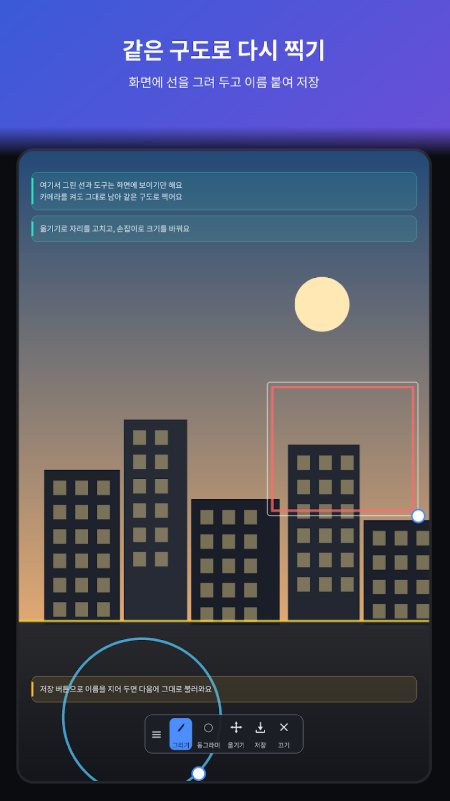
- Draw lines · circles · rectangles on the screen and they stay in place even when you open your camera app
- Handy for reshooting from the same spot with the same framing as yesterday
- Name and save your guides, then load them again next time
Decorating and exporting
- 20 animated emoji stickers + 6 emoji packs, 12 themed frames
- Image layers over your video — show a title bar, logo and more only in the sections you choose
- Background music: volume, fade in/out, loop, and automatically lower music while someone speaks
- Export as MP4 (H.264/AAC) at 480p · 720p · 1080p, save to your gallery and share right away, with a heads-up if the length exceeds social media limits
Easy for everyone
- Plain words instead of editing jargon — "Quality", "Screen shape", "Lower music when talking"
- Large buttons with icon + text labels, and an easy mode that cuts the tools down to 4
- Up to 20 steps of undo, and confirmation before deleting
FAQ
Frequently asked questions
Does it add watermarks or ads?
There are no ads. This app has no internet access permission at all, so it can't include accounts, ads or analytics. Start right after installing — no sign-up or login.
Do I have to type every caption myself?
Auto captions recognize speech on your phone and create captions for you. Six languages are supported, and your voice is never sent off the device. You can freely change the font, color and position of the generated captions.
Can I use MOV videos shot on an iPhone?
Yes. The Convert format feature turns iPhone MOV, MKV, AVI and other formats into MP4 that opens anywhere. You can also choose the quality and file size.
Can I save just the audio from a video?
Yes. The Extract audio feature saves a video's sound as an M4A or WAV audio file. When joining several clips, Match audio levels evens out different volumes across scenes with one button, or you can set each scene from 0–200% yourself.
What does it mean that screen recording captures handwriting?
Anything you write by hand on the screen while recording goes straight into the video. When making app tutorials, lectures or gameplay commentary, you don't need to add text in editing afterward. Turn the pen off to use the app underneath as usual, and optionally record your voice from the mic too.
How do I use the on-screen composition guide?
Draw lines, circles or rectangles on the screen and they stay in place even when you open your camera app. It's handy for reshooting from the same spot with the same framing as yesterday. Name and save your guides, then load them again next time.
What aspect ratios and quality can I export?
Vertical 9:16 is the default, and square (1:1) and landscape (16:9) are also available. Export as MP4 (H.264/AAC) at 480p, 720p or 1080p, save to your gallery and share right away. If the video is longer than a social platform's limit, you'll get a heads-up first.
Is editing hard?
Instead of editing jargon, PenCut uses plain words like 'Quality', 'Screen shape' and 'Lower music when talking'. You get large buttons with icon + text labels, an easy mode that cuts the tools down to 4, up to 20 steps of undo, and confirmation before deleting.
If the app closes while editing, do I lose my work?
Edits save automatically, so you can close the app and pick up where you left off. Videos, photos, recordings and edits are all stored only on your phone and never sent anywhere.
More apps
Explore other apps
FamilyKeeper
Family location & safety
PocketStock
Stocks: track, manage, forecast
Yeojeong
Itinerary, spending, photos & diary
MeetingNote
Write on PDFs while recording
 Fridge Chef
Recipes from what’s in your fridge
 MyHomeCam
Your old phone becomes a home CCTV
 Life Toolkit
20 everyday tools in one app
 VISITED
A fog map cleared by walking
 Money Note
Budget filled in from bank alerts
 Play Together
31 mini-games with family & friends
Fridge Chef
Recipes from what’s in your fridge
MyHomeCam
Your old phone becomes a home CCTV
Life Toolkit
20 everyday tools in one app
VISITED
A fog map cleared by walking
Money Note
Budget filled in from bank alerts
Play Together
31 mini-games with family & friends
Privacy
PenCut has no internet access permission at all. No account, no ads, no analytics — all your videos, photos, recordings and edits are stored only on your phone and never sent anywhere.