
That old phone in your drawer?
Don't toss it — make it a home cam
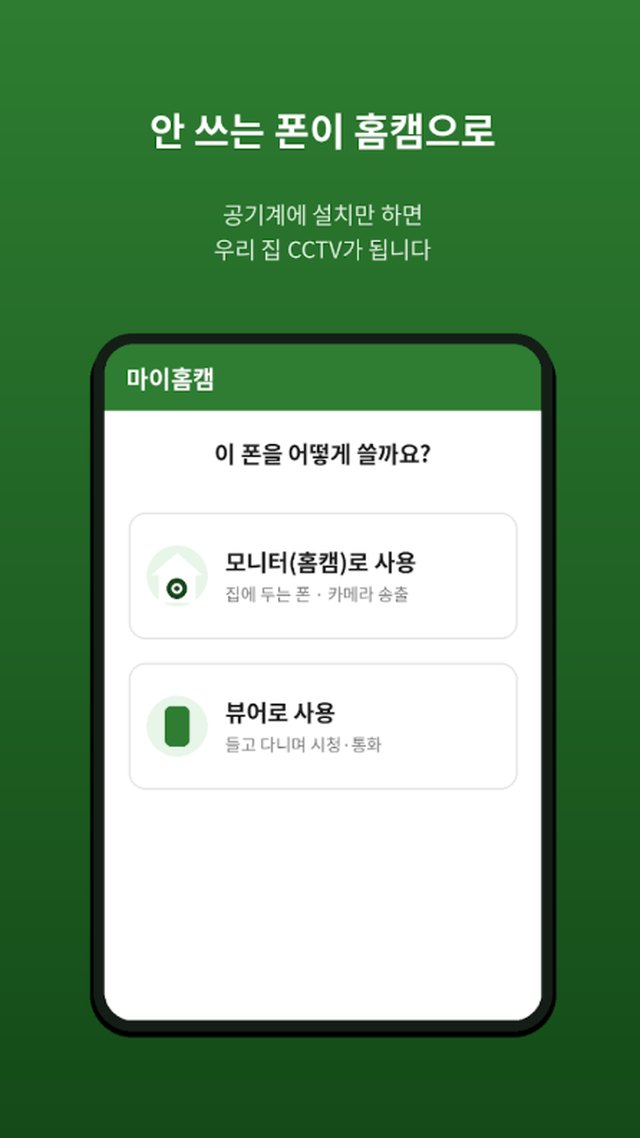
No need to buy a new camera. Install it on an old phone, set it up in place, and it instantly becomes a live home camera so you can check on pets, babies or an empty house from anywhere.
What it does
You worry about your pet home alone, keep thinking about the baby napping in the next room, or wonder about the house you've left empty for a few days — yet spending real money on a home camera feels like a lot. MyHomeCam puts the old phone from your drawer to work instead. Set the phone that stays home as the monitor (home cam) and the phone you carry as the viewer, log in with the same account, and you're done. Family members can watch with a single invite code, and you can also watch in a computer browser. Video and audio are encrypted and travel only between your devices — never stored on a server — so it's your own private home cam.
- Turn an old phone into a home cam — install, choose monitor or viewer, and you're connected
- Check live video and audio from anywhere — while out, at work or on a trip
- Motion and sound alerts — get notified the moment something changes at home
- Two-way talk — use “Push to talk” to speak to your pets, kids or family
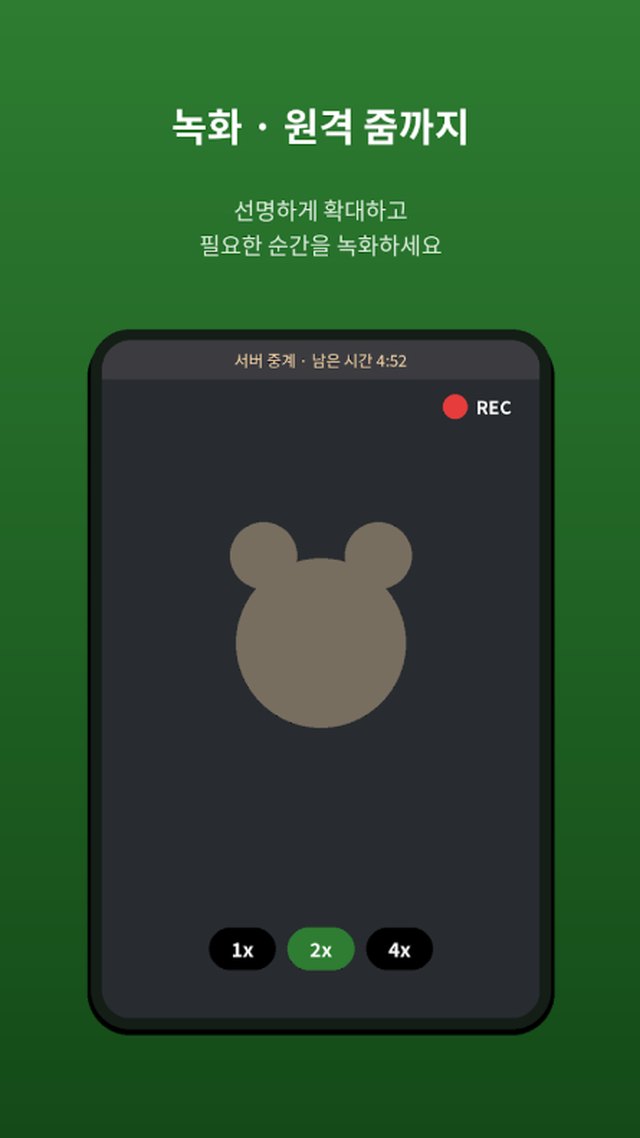
- Remote zoom (1x, 2x, 4x), video and audio recording, photos and flashlight, with gallery saving
- Full-screen and rotated viewing, register and manage multiple home cams
- See the monitor phone's battery and online status
- Encrypted device-to-device transfer · nothing stored on servers · screen hiding against intruders
- Detection settings — motion and sound sensitivity, zones to ignore (4×4 grid), and day/time schedules
- Detection clips — saves 15 seconds of video right after a detection, viewable as thumbnails (kept for 7 days)
- Remote settings — change your home cam's detection and camera settings from your phone, even when you're out
- Home cam status alerts — get notified if the connection drops for more than 10 minutes, the power turns off, or the battery falls below 20% or 5%
- Grid view — up to 4 home cams on one screen, with sound on only for the tile you tap
- Home screen widget — connection, battery and last detection time for each home cam
- Family sharing — watch together and get alerts on family members' phones with an 8-digit invite code
- Watch on a computer — log in from Chrome, Edge, Safari or Firefox, with new login alerts for security
- Privacy mode — declines viewing requests and pauses detection while you're home
- 6 languages — 한국어, English, 日本語, 简体中文, 繁體中文, Русский
Frequently asked questions
What do I need to use it?
Can I watch when I'm away from home?
Will it tell me if something happens at home?
Can I only watch, or can I talk too?
Can I zoom in or record?
Is my privacy safe?
Can I watch on a computer?
Can my family watch too?
Can I see several home cams on one screen?
Explore other apps
 Fridge Chef
Recipes from what’s in your fridge
 Life Toolkit
20 everyday tools in one app
 VISITED
A fog map cleared by walking
 Money Note
Budget filled in from bank alerts
 PenCut
A vertical video in 3 minutes
 Play Together
31 mini-games with family & friends