Write right on your materials,
and record at the same time
A meeting notes app that recreates the feel of jotting on printed handouts — viewing, writing and recording flow together on one screen.
About the app
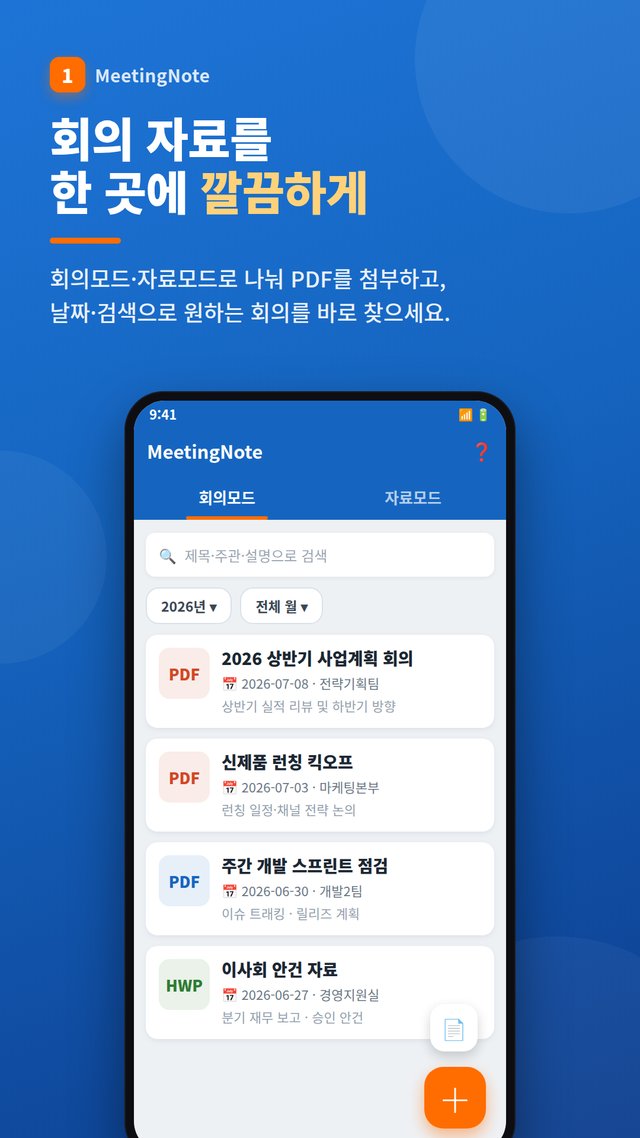
MeetingNote is a meeting notes app that lets you open meeting materials on screen, write directly on them and record, keeping everything from the meeting in one place. It brings the familiar experience of making pen notes on printed handouts into the digital world, so viewing, writing and recording flow seamlessly on a single screen.
Key features
- PDF viewer — pre-renders adjacent pages for fast navigation, with pinch-to-zoom and panning
- Pen, highlighter and eraser — smooth stroke correction with undo and redo
- Text, image, audio and video annotations placed freely on the page
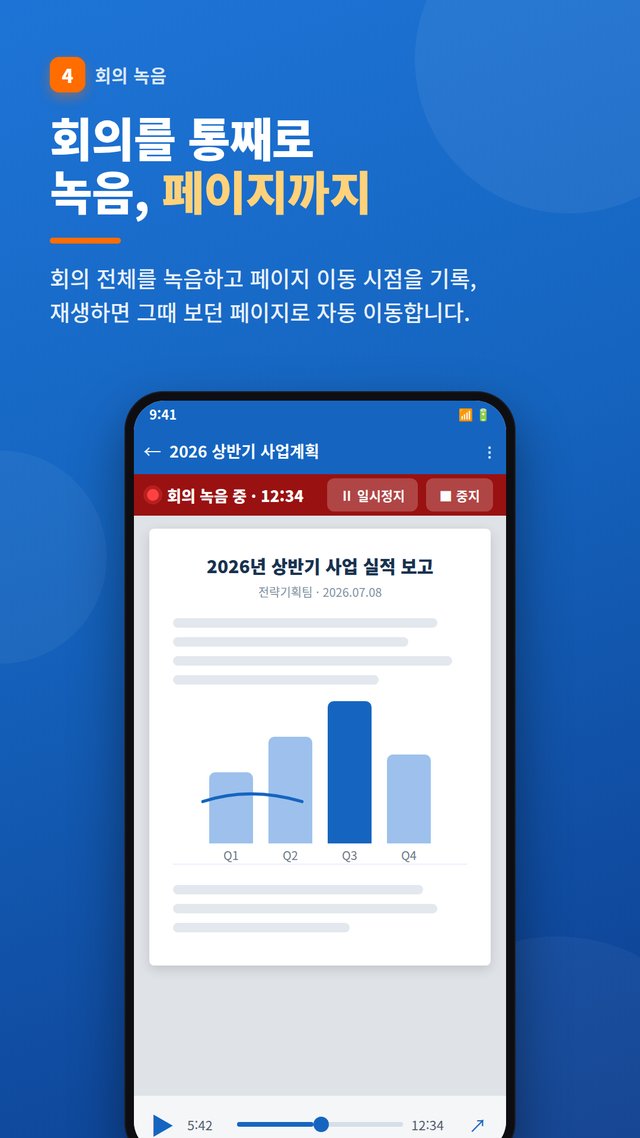
- Meeting recording — page turns are recorded too, so playback jumps to the page you were viewing
- Foreground recording service keeps recording in the background, with pause and resume
- Insert blank pages and bookmarks, and export your annotated notes as a new PDF to share
- Tablet-optimized — two-pane landscape layout (meeting list + preview), book-style two-page view, pinned page thumbnails
- S Pen side-button eraser and hover preview, keyboard shortcuts (← → to change pages, Ctrl+F to search, Ctrl+Z to undo)
Latest update · v1.5.0 (Oct 2026)
- Recording transcription — turn recordings into text on your device, view by page, search, and share text with timestamps (Android 13+)
- ★ Important marker — tap during recording to save that moment and the page you were on; tap it in the list to replay from there
- Meeting minutes template page — add a page with fields for attendees, agenda, discussion, decisions and action items
- Vertical scroll view — read pages continuously from top to bottom (default)
- Lasso select — move, copy or delete multiple strokes, text boxes and photos at once
- Page organizing — reorder, duplicate and delete pages, and attach up to 10 PDFs to one meeting
- Calendar event import and meeting start reminders (at start time, or 10 min, 30 min or 1 hour before)
- “Share” a PDF or photo from KakaoTalk, email or a file app to start a new meeting instantly
Previous update · Sep 27, 2026
- Landscape: two-pane layout with the meeting list on the left and a preview on the right
- Two-page view: see two pages side by side like an open book
- Page thumbnails pinned to the left of the viewer
- S Pen: hold the side button while drawing to erase; hover the pen to preview stroke width and position
- Keyboard shortcuts and editing and settings screens optimized for large screens
FAQ
Frequently asked questions
What kinds of files can I write on?
Open a PDF on screen and write directly on it. Adjacent pages are pre-rendered so you can flip through quickly, and you can zoom and pan with two fingers.
Isn't it a hassle to find the right page when replaying a recording?
The moments you turn pages are recorded along with the audio. During playback, the app automatically jumps to the page you were viewing at that point, so you never have to hunt for it.
Will recording stop if I switch to another app?
It runs as a foreground recording service, so it keeps going in the background without interruption. You can pause and resume recording whenever you need.
Can I share my annotated materials with others?
Yes. You can export your annotated notes as a new PDF and share it.
Can I add photos or audio, not just handwriting?
In addition to typed text, you can freely place image, audio and video annotations anywhere you like on the page.
Does it work with tablets and the S Pen?
Yes. On a tablet in landscape, the screen switches to a two-pane layout with the meeting list on the left and a preview on the right. You can view two pages side by side like a book, or pin page thumbnails to the left of the viewer. Hold the S Pen's side button while drawing to erase, and hover the pen over the screen to preview stroke width and position. With a keyboard connected, you can use shortcuts like ← → to change pages, Ctrl+F to search and Ctrl+Z to undo.
What if I run out of space for notes that aren't in the materials?
You can insert blank pages wherever you want, and bookmark pages you refer to often.
Can I turn recordings into text for meeting minutes?
Yes. Tap “Recording transcription” in the menu, and the recording is converted to text using your device's on-device speech recognizer. You can view just the current page or everything, filter by search terms, and tap a line to play from that point. Use “Share text” to send the full timestamped text and use it right away for your minutes. Works on Android 13 or later, on devices that support on-device speech recognition.
Can I replay just the important moments?
Tap the ★ Important button during recording to save that moment and the page you were viewing, and add a note if you like. Tap an item in the ★ list on the playback bar to play from that moment and jump to that page. It's also great for marking the “this will be on the exam” moments in lectures.
Can I set up meetings in advance and get reminders?
You can create a meeting by importing the title, date and time from a calendar event, and get a reminder at the start time or 10 minutes, 30 minutes or 1 hour before. Share meeting materials to MeetingNote from KakaoTalk, email or a file app and they're attached right away.
More apps
Explore other apps
FamilyKeeper
Family location & safety
PocketStock
Stocks: track, manage, forecast
Yeojeong
Itinerary, spending, photos & diary
 Fridge Chef
Recipes from what’s in your fridge
 MyHomeCam
Your old phone becomes a home CCTV
 Life Toolkit
20 everyday tools in one app
 VISITED
A fog map cleared by walking
 Money Note
Budget filled in from bank alerts
 PenCut
A vertical video in 3 minutes
 Play Together
31 mini-games with family & friends
Fridge Chef
Recipes from what’s in your fridge
MyHomeCam
Your old phone becomes a home CCTV
Life Toolkit
20 everyday tools in one app
VISITED
A fog map cleared by walking
Money Note
Budget filled in from bank alerts
PenCut
A vertical video in 3 minutes
Play Together
31 mini-games with family & friends
Privacy
MeetingNote requires no sign-up or external data linking. Everything you enter is stored securely on your device only.